
Building Scalable Admin Dashboards with Next.js 16 and React 19
Modern web applications demand robust, scalable admin dashboards that provide comprehensive data visualization and management capabilities. Next.js 16 and ...

Building Scalable Admin Dashboards with Next.js 16 and React 19#
Introduction#
Modern web applications demand robust, scalable admin dashboards that provide comprehensive data visualization and management capabilities. Next.js 16 and React 19 offer powerful tools for building such applications, with features like Server Components, improved performance optimizations, and enhanced developer experience.
Next.js 16 introduces several key improvements that make it an excellent choice for building admin dashboards. The App Router provides a more intuitive way to structure your application, with built-in support for nested layouts and loading states. Server Components allow you to fetch data on the server, reducing the amount of client-side JavaScript needed and improving performance. The new next/font system makes it easier to optimize and load fonts, ensuring a smooth user experience.
React 19 brings several enhancements that complement Next.js 16's features. The new Compiler reduces the need for manual memoization and optimizations, making your code more performant by default. The Actions API simplifies form handling and server mutations, which is particularly useful for admin dashboards that require frequent data updates. React 19's improved Server Components support further enhances the separation of concerns between client and server code.
The Evolution of Next.js and React#
Next.js has come a long way since its inception, evolving to meet the demands of modern web development. Next.js 16 represents a significant leap forward in terms of performance, developer experience, and feature set. The introduction of the App Router marks a departure from the traditional Pages Router, offering a more intuitive and flexible way to structure your application. This is particularly beneficial for admin dashboards, where you often need to manage complex nested layouts and data flows.
React, too, has undergone significant evolution. React 19 introduces several performance optimizations and new features that make it an even more powerful tool for building admin dashboards. The new Compiler reduces the need for manual optimizations, making your code more maintainable and performant. The Actions API simplifies form handling and server mutations, which is crucial for admin dashboards that require frequent data updates. React 19's improved Server Components support further enhances the separation of concerns between client and server code, making it easier to build scalable and maintainable applications.
Why Next.js 16 and React 19 for Admin Dashboards?#
Next.js 16 and React 19 offer several advantages that make them ideal for building scalable admin dashboards. The App Router provides a more intuitive way to structure your application, with built-in support for nested layouts and loading states. This is particularly beneficial for admin dashboards, where you often need to manage complex nested layouts and data flows.
Server Components allow you to fetch data on the server, reducing the amount of client-side JavaScript needed and improving performance. This is crucial for admin dashboards, which often need to display large amounts of data and perform complex operations. The new next/font system makes it easier to optimize and load fonts, ensuring a smooth user experience.
React 19's new Compiler reduces the need for manual memoization and optimizations, making your code more performant by default. The Actions API simplifies form handling and server mutations, which is particularly useful for admin dashboards that require frequent data updates. React 19's improved Server Components support further enhances the separation of concerns between client and server code, making it easier to build scalable and maintainable applications.
Setting Up the Development Environment#
Before you can start building your admin dashboard, you need to set up your development environment. This involves installing Node.js, a package manager like npm or yarn, and creating a new Next.js project.
Installing Node.js and npm/yarn#
Node.js is a JavaScript runtime that allows you to run JavaScript on the server. It's essential for building modern web applications. You can download Node.js from the official website, and it includes npm, a package manager for JavaScript.
Once you've installed Node.js, you can use npm to install yarn, another popular package manager. To install yarn, run the following command in your terminal:
npm install -g yarn
Creating a New Next.js Project#
Next.js provides a convenient command-line interface for creating new projects. To create a new Next.js project using the App Router, run the following command in your terminal:
npx create-next-app@latest my-admin-dashboard --typescript --experimental-app
This command creates a new Next.js project with TypeScript support and the experimental App Router enabled. You can then navigate to the project directory and start the development server:
cd my-admin-dashboard
yarn dev
Integrating Tailwind CSS#
Tailwind CSS is a utility-first CSS framework that makes it easy to style your application. To integrate Tailwind CSS with your Next.js project, you can use the official Tailwind CSS integration for Next.js. First, install the required dependencies:
yarn add -D tailwindcss postcss autoprefixer
Next, generate the Tailwind CSS configuration files:
npx tailwindcss init -p
This creates a tailwind.config.js file and a postcss.config.js file in your project root. You can then update the tailwind.config.js file to include the paths to your template files:
module.exports = {
  content: [
    "./app/**/*.{js,ts,jsx,tsx}",
    "./pages/**/*.{js,ts,jsx,tsx}",
    "./components/**/*.{js,ts,jsx,tsx}",
  ],
  theme: {
    extend: {},
  },
  plugins: [],
}
Finally, update your globals.css file to include the Tailwind CSS directives:
@tailwind base;
@tailwind components;
@tailwind utilities;
With Tailwind CSS integrated, you can now start styling your admin dashboard.
Building the Admin Dashboard Layout#
The layout of your admin dashboard is crucial for providing a good user experience. It should be intuitive, responsive, and easy to navigate. In this section, we'll discuss the design principles and best practices for building an effective admin dashboard layout, and then we'll implement it using React components.
Designing the Dashboard Layout#
When designing the layout of your admin dashboard, consider the following principles:
- Intuitive Navigation: Provide clear and intuitive navigation that allows users to quickly find the information they need.
- Responsive Design: Ensure that your dashboard is responsive and works well on different screen sizes.
- Consistent Styling: Use consistent styling and branding throughout your dashboard to create a cohesive user experience.
- Accessibility: Ensure that your dashboard is accessible to all users, including those with disabilities.
Implementing the Layout with React Components#
To implement the layout of your admin dashboard, you can use React components. Here's an example of a simple layout component:
import { ReactNode } from 'react';

interface LayoutProps {
  children: ReactNode;
}

export default function Layout({ children }: LayoutProps) {
  return (
    <div className="flex h-screen">
      <div className="w-64 bg-gray-800 text-white">
        {/* Sidebar content */}
      </div>
      <div className="flex-1 overflow-auto">
        <div className="bg-white p-4">
          {/* Main content */}
          {children}
        </div>
      </div>
    </div>
  );
}
This component creates a basic layout with a sidebar on the left and the main content area on the right. You can then use this component to wrap your pages:
import Layout from '../components/Layout';

export default function Dashboard() {
  return (
    <Layout>
      <h1 className="text-2xl font-bold">Dashboard</h1>
      {/* Dashboard content */}
    </Layout>
  );
}
Adding Navigation and Sidebars#
Navigation and sidebars are essential for providing intuitive navigation in your admin dashboard. You can use React components to create navigation menus and sidebars. Here's an example of a navigation component:
import Link from 'next/link';

export default function Navigation() {
  return (
    <nav className="p-4">
      <ul className="space-y-2">
        <li>
          <Link href="/dashboard" className="block p-2 hover:bg-gray-200">
            Dashboard
          </Link>
        </li>
        <li>
          <Link href="/users" className="block p-2 hover:bg-gray-200">
            Users
          </Link>
        </li>
        <li>
          <Link href="/settings" className="block p-2 hover:bg-gray-200">
            Settings
          </Link>
        </li>
      </ul>
    </nav>
  );
}
You can then use this component in your layout:
import Navigation from '../components/Navigation';

export default function Layout({ children }: LayoutProps) {
  return (
    <div className="flex h-screen">
      <div className="w-64 bg-gray-800 text-white">
        <Navigation />
      </div>
      <div className="flex-1 overflow-auto">
        <div className="bg-white p-4">
          {children}
        </div>
      </div>
    </div>
  );
}
Implementing Key Features#
Admin dashboards often require several key features, such as data fetching, authentication, and authorization. In this section, we'll discuss how to implement these features using Next.js 16 and React 19.
Data Fetching with React Server Components#
React Server Components allow you to fetch data on the server, reducing the amount of client-side JavaScript needed and improving performance. Here's an example of how to fetch data using React Server Components:
async function getData() {
  const res = await fetch('https://api.example.com/data');
  if (!res.ok) {
    throw new Error('Failed to fetch data');
  }
  return res.json();
}

export default async function Page() {
  const data = await getData();

  return (
    <div>
      <h1>Data</h1>
      <pre>{JSON.stringify(data, null, 2)}</pre>
    </div>
  );
}
This component fetches data from an API endpoint and displays it in the browser. The data fetching happens on the server, reducing the amount of client-side JavaScript needed and improving performance.
Implementing Suspense Streaming Patterns#
Suspense streaming patterns allow you to improve the performance of your admin dashboard by loading components incrementally. Here's an example of how to implement Suspense streaming patterns:
import { Suspense } from 'react';

function SlowComponent() {
  // Simulate a slow component
  const startTime = Date.now();
  while (Date.now() - startTime < 1000) {
    // Do nothing
  }

  return <div>Slow Component</div>;
}

export default function Page() {
  return (
    <div>
      <h1>Suspense Streaming Patterns</h1>
      <Suspense fallback={<div>Loading...</div>}>
        <SlowComponent />
      </Suspense>
    </div>
  );
}
In this example, the SlowComponent simulates a slow component that takes one second to render. The Suspense component provides a fallback UI while the SlowComponent is loading, improving the user experience.
Adding Authentication and Authorization#
Authentication and authorization are essential for securing your admin dashboard. You can use libraries like NextAuth.js to add authentication and authorization to your application. Here's an example of how to add authentication using NextAuth.js:
import { useSession, signIn, signOut } from 'next-auth/react';

export default function Page() {
  const { data: session } = useSession();

  if (session) {
    return (
      <div>
        <p>Welcome, {session.user?.name}</p>
        <button onClick={() => signOut()}>Sign Out</button>
      </div>
    );
  }

  return (
    <div>
      <p>Not signed in</p>
      <button onClick={() => signIn()}>Sign In</button>
    </div>
  );
}
This component checks if the user is signed in and displays a welcome message if they are. If the user is not signed in, it displays a sign-in button. You can then use this component to protect your admin dashboard routes.
Optimizing Performance#
Performance is crucial for providing a good user experience in your admin dashboard. In this section, we'll discuss how to optimize the performance of your application using code splitting, lazy loading, and caching strategies.
Code Splitting and Lazy Loading#
Code splitting and lazy loading allow you to improve the performance of your admin dashboard by loading components only when they are needed. Here's an example of how to implement code splitting and lazy loading:
import { lazy, Suspense } from 'react';

const LazyComponent = lazy(() => import('../components/LazyComponent'));

export default function Page() {
  return (
    <div>
      <h1>Code Splitting and Lazy Loading</h1>
      <Suspense fallback={<div>Loading...</div>}>
        <LazyComponent />
      </Suspense>
    </div>
  );
}
In this example, the LazyComponent is loaded only when it is needed, improving the performance of your application. The Suspense component provides a fallback UI while the LazyComponent is loading, improving the user experience.
Implementing Caching Strategies#
Caching strategies allow you to improve the performance of your admin dashboard by storing frequently accessed data in memory. Here's an example of how to implement caching strategies:
import { useState, useEffect } from 'react';

function useCachedData() {
  const [data, setData] = useState(null);

  useEffect(() => {
    const cachedData = localStorage.getItem('cachedData');
    if (cachedData) {
      setData(JSON.parse(cachedData));
    } else {
      fetch('https://api.example.com/data')
        .then((res) => res.json())
        .then((data) => {
          localStorage.setItem('cachedData', JSON.stringify(data));
          setData(data);
        });
    }
  }, []);

  return data;
}

export default function Page() {
  const data = useCachedData();

  return (
    <div>
      <h1>Caching Strategies</h1>
      <pre>{JSON.stringify(data, null, 2)}</pre>
    </div>
  );
}
In this example, the useCachedData hook checks if there is cached data in local storage. If there is, it uses the cached data; otherwise, it fetches the data from the API and caches it in local storage. This improves the performance of your application by reducing the number of API calls.
Testing and Debugging#
Testing and debugging are essential for ensuring the performance and reliability of your admin dashboard. You can use tools like Jest and React Testing Library to test your components, and the Next.js development server to debug your application. Here's an example of how to test a component using Jest and React Testing Library:
import { render, screen } from '@testing-library/react';
import Page from '../pages/index';

describe('Page', () => {
  it('renders a heading', () => {
    render(<Page />);

    const heading = screen.getByRole('heading', {
      name: /Testing and Debugging/i,
    });

    expect(heading).toBeInTheDocument();
  });
});
In this example, the test checks if the Page component renders a heading with the text "Testing and Debugging". You can then use the Next.js development server to debug your application by adding breakpoints and inspecting the state of your components.
Deploying the Admin Dashboard#
Once you've built and optimized your admin dashboard, you can deploy it to a production environment. In this section, we'll discuss how to prepare your application for deployment, deploy it to Vercel, and monitor and maintain it post-deployment.
Preparing for Deployment#
Before you deploy your admin dashboard, you should prepare your application for production. This involves building your application, optimizing your assets, and configuring your environment variables. Here's an example of how to build your application for production:
yarn build
This command builds your application for production, optimizing your assets and generating a production-ready bundle. You can then deploy your application to a production environment.
Deploying to Vercel#
Vercel is a popular platform for deploying Next.js applications. To deploy your admin dashboard to Vercel, you can use the Vercel CLI or the Vercel dashboard. Here's an example of how to deploy your application using the Vercel CLI:
yarn global add vercel
vercel
This command deploys your application to Vercel, providing you with a production URL and a preview URL for testing. You can then monitor and maintain your application using the Vercel dashboard.
Monitoring and Maintenance#
Monitoring and maintenance are essential for ensuring the performance and reliability of your admin dashboard. You can use tools like Sentry and New Relic to monitor your application, and the Vercel dashboard to manage your deployments. Here's an example of how to monitor your application using Sentry:
yarn add @sentry/nextjs
This command installs the Sentry SDK for Next.js, allowing you to monitor your application for errors and performance issues. You can then configure Sentry to track errors and performance metrics, providing you with valuable insights into the health of your application.
Conclusion#
In this article, we've discussed how to build scalable admin dashboards using Next.js 16 and React 19. We've covered the key features and improvements in Next.js 16 and React 19, and how to use them to build a scalable and maintainable admin dashboard. We've also discussed how to optimize the performance of your application using code splitting, lazy loading, and caching strategies, and how to deploy and monitor your application using Vercel and Sentry.
Recap of Key Concepts#
- Next.js 16 and React 19 offer powerful tools for building scalable admin dashboards.
- The App Router provides a more intuitive way to structure your application, with built-in support for nested layouts and loading states.
- Server Components allow you to fetch data on the server, reducing the amount of client-side JavaScript needed and improving performance.
- React 19's new Compiler reduces the need for manual memoization and optimizations, making your code more performant by default.
- The Actions API simplifies form handling and server mutations, which is particularly useful for admin dashboards that require frequent data updates.
- React 19's improved Server Components support further enhances the separation of concerns between client and server code.
Next Steps and Further Learning#
If you're interested in building scalable admin dashboards using Next.js 16 and React 19, there are several resources you can explore:
Introducing Nata Admin#
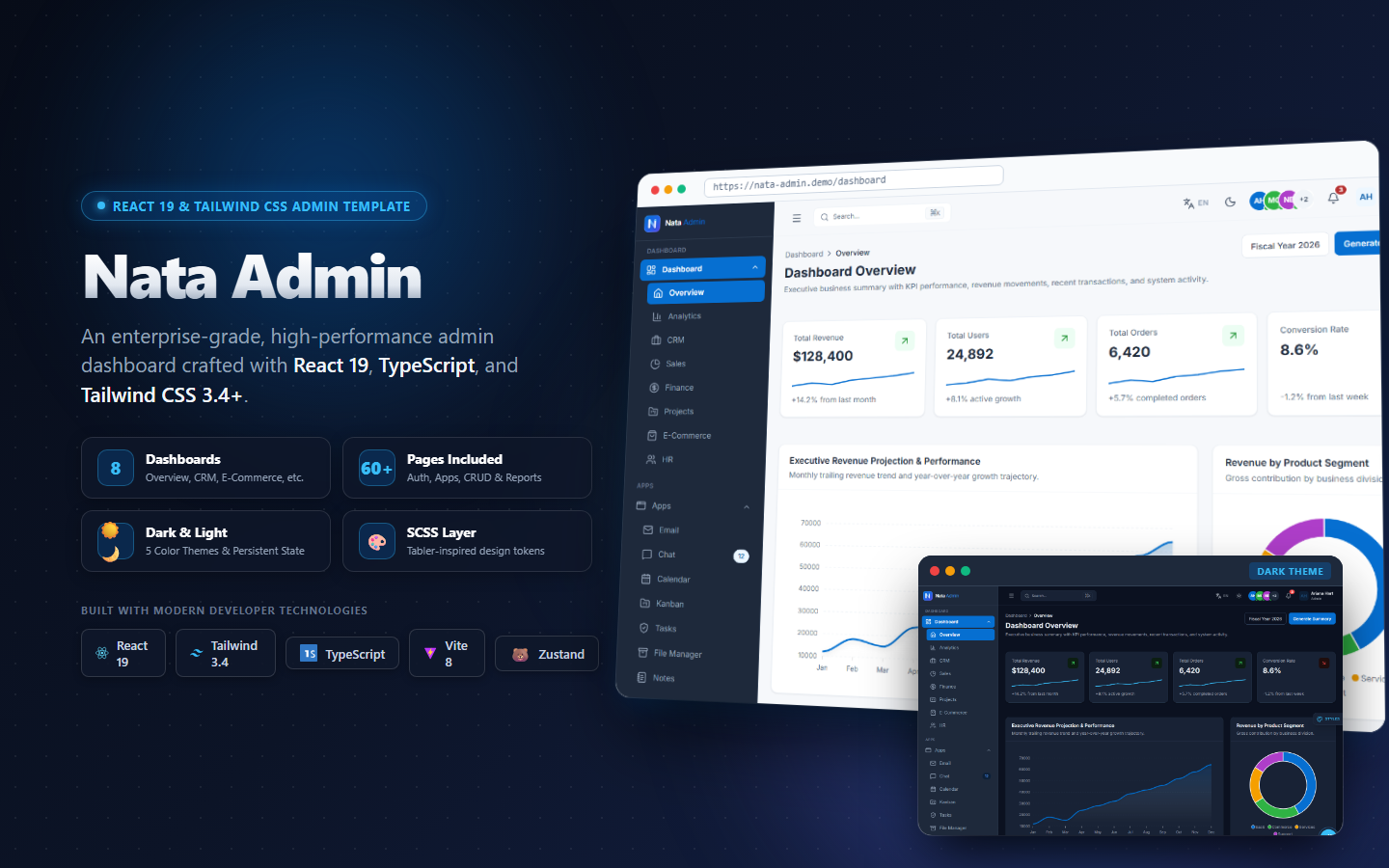
If you're looking for a head start in building your admin dashboard, consider using Nata Admin. Nata Admin is a production-ready admin dashboard template built with Next.js 16 and React 19, featuring a modern design, intuitive navigation, and essential features for managing your application. You can browse our production-ready templates to get started with Nata Admin today.
For more developer articles and resources, check out our blog for in-depth engineering deep dives.