
AI-Assisted Development Workflow for Admin Dashboards
Admin dashboards are the command centers of modern web applications, where data visualization, user management, and system monitoring converge. Building th...

AI-Assisted Development Workflow for Admin Dashboards#
Introduction#
Admin dashboards are the command centers of modern web applications, where data visualization, user management, and system monitoring converge. Building these interfaces requires a blend of design sensibilities and technical precision. The modern developer faces several challenges:
- Component complexity: Admin dashboards often include complex UI elements like data tables, charts, and form builders
- Type safety: Maintaining strict TypeScript types across dynamic data flows
- Performance optimization: Balancing rich interactivity with fast load times
- Consistency: Ensuring design system compliance across all components
AI tools are transforming how developers approach these challenges, offering new ways to generate, refine, and integrate code components. This article explores an AI-assisted workflow for building admin dashboards, focusing on practical techniques and real-world implementation.
Why AI Matters for Admin Dashboards#
Admin dashboards represent a unique intersection of technical and visual complexity. Traditional development approaches often struggle with:
- Component variety: Dashboards require dozens of specialized components with precise visual and functional requirements
- Rapid iteration: Business requirements evolve quickly, demanding frequent UI adjustments
- Design consistency: Maintaining visual cohesion across many components
AI tools address these challenges by:
- Accelerating component generation: Creating new UI elements in minutes rather than hours
- Enhancing code quality: Providing type-safe implementations and design system compliance
- Facilitating rapid prototyping: Enabling quick iteration and experimentation
Key AI Tools for Development#
The workflow presented here leverages two primary AI tools:
Cursor Rules#
Cursor Rules is an AI-powered code assistant that integrates directly into your development environment. It provides:
- Context-aware suggestions: Understanding your project structure and codebase
- Component generation: Creating new UI components with proper TypeScript types
- Design system integration: Ensuring components match your Tailwind CSS configuration
Claude Code CLI#
The Claude Code CLI offers command-line access to Anthropic's powerful language model, providing:
- Batch processing: Generating multiple related components at once
- Complex refactoring: Handling large-scale code transformations
- Documentation generation: Creating comprehensive component documentation
Setting Up Your AI Development Environment#
Before beginning development, you'll need to set up your environment with these AI tools.
Installing and Configuring Cursor Rules#
- Install Cursor from the official website
- Open your project directory in Cursor
- Create a
.cursor/rulesdirectory at the project root - Add rules files for your components (e.g.,
.cursor/rules/data-table.mdc)
// Example Cursor rule for a data table component
import { DataTable } from '@/components/ui/data-table';

export const dataTableRule = {
  name: 'data-table',
  description: 'Generates a data table component with proper typing',
  generate: async (context) => {
    const columns = context.getColumns();
    const data = context.getData();

    return `
      export interface DataTableProps<TData> {
        columns: ColumnDef<TData>[];
        data: TData[];
      }

      export function DataTable<TData>({ columns, data }: DataTableProps<TData>) {
        // Implementation
      }
    `;
  }
};
Setting Up Claude Code CLI#
- Install the CLI using npm:
npm install -g claude-code-cli
- Configure your API key:
claude configure
- Create a
.claudedirectory in your project root - Add configuration files for your project:
# .claude/config.yaml
project:
  name: Admin Dashboard
  description: A comprehensive admin dashboard with data visualization
  language: TypeScript
  framework: Next.js
AI-Assisted Development Workflow#
The workflow consists of several key phases:
- Component specification: Defining what each component should do
- AI generation: Creating initial implementations
- Refinement: Adjusting and optimizing the generated code
- Integration: Adding components to your application
Prompt Matrices for Admin Dashboard Components#
For each component, create a prompt matrix that includes:
- Functional requirements: What the component should do
- Visual requirements: Design specifications and styling
- Technical requirements: Type definitions and integration points
# Data Table Component

## Functional Requirements
- Display tabular data with sorting and filtering
- Support pagination
- Handle large datasets efficiently

## Visual Requirements
- Match the design system's color palette
- Use consistent spacing and typography
- Include hover states for rows

## Technical Requirements
- TypeScript interface for data and column definitions
- Integration with React Query for data fetching
- Compatibility with the existing component library
AI-Assisted Development Walkthrough#
Let's walk through creating a data table component:
- Initial Generation with Cursor Rules:
cursor generate data-table
- Refinement with Claude Code CLI:
claude refactor data-table --optimize-performance
- Integration into the Application:
// app/dashboard/page.tsx
import { DataTable } from '@/components/ui/data-table';
import { columns } from '@/lib/columns';
import { getData } from '@/lib/data';

export default async function DashboardPage() {
  const data = await getData();

  return (
    <div className="container mx-auto py-10">
      <DataTable columns={columns} data={data} />
    </div>
  );
}
Best Practices for AI-Assisted Development#
Optimizing AI Prompts for Admin Dashboards#
When crafting prompts for admin dashboard components:
- Be specific: Clearly define both functional and visual requirements
- Include context: Provide information about your existing codebase
- Iterate: Refine prompts based on initial outputs
- Combine tools: Use Cursor for individual components and Claude for complex refactoring
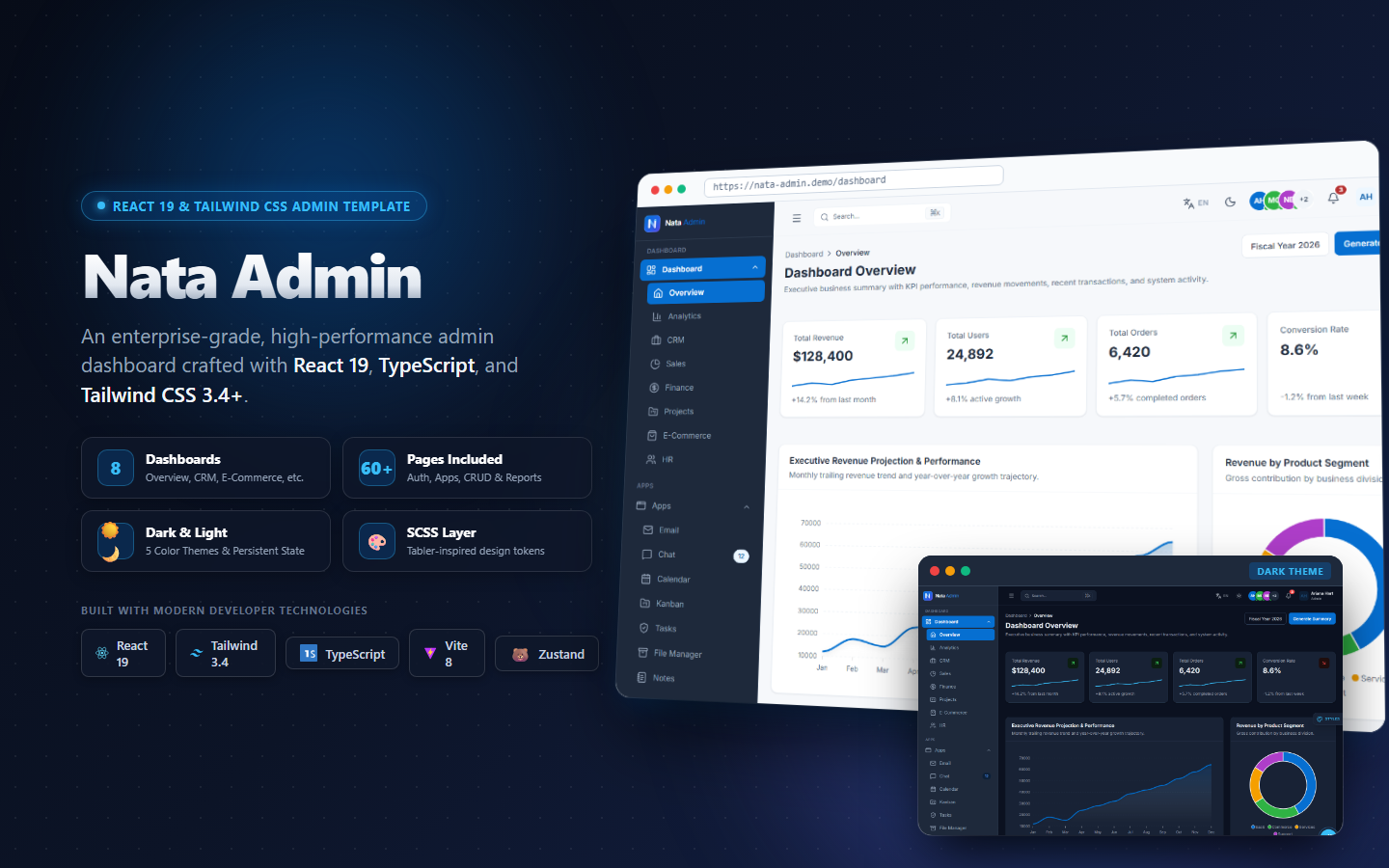
Integrating AI-Generated Code with Nata Admin#
To effectively integrate AI-generated components with the Nata Admin template:
- Maintain component boundaries: Keep generated components modular
- Type safety: Verify all generated TypeScript interfaces
- Design system compliance: Check for proper Tailwind class usage
- Performance testing: Profile components for rendering efficiency
// Example of verifying component integration
import { DataTable } from '@/components/ui/data-table';
import { NataDashboardLayout } from '@appiqa/nata-admin';

export default function Dashboard() {
  return (
    <NataDashboardLayout>
      <DataTable columns={columns} data={data} />
    </NataDashboardLayout>
  );
}
Conclusion#
The AI-assisted workflow presented here demonstrates how modern tools can significantly enhance admin dashboard development. By combining Cursor Rules for component generation and Claude Code CLI for complex refactoring, developers can:
- Accelerate development cycles
- Maintain high code quality standards
- Create more consistent and polished interfaces
As AI tools continue to evolve, we'll see even more sophisticated integration patterns emerging. For production-ready templates, browse our collection of pre-built admin dashboards. For more in-depth technical explorations, read our developer articles.
The future of admin dashboard development lies at the intersection of human creativity and AI assistance. By adopting these workflows, developers can build more powerful, maintainable, and visually cohesive interfaces while reducing development time and effort.